


Seesaw is an education app I would describe as a shared classroom workspace rather than a replacement for a full school-management system. It is made by Seesaw Learning, is free to use, and is rated for Everyone. I found its main appeal in the way it gives learning activities a visible place where children, teachers, and families can follow what is happening without relying entirely on paper folders or scattered messages.
The app has been available since June 24, 2015, and its scale is easy to understand from its store presence: it has passed five million installs and holds an average rating of 3.9 from around twenty-six thousand ratings. Those figures suggest a well-established product, but they also hint at something important for new users: Seesaw works best when the classroom setup is organized. A confusing class code, an incorrect sign-in route, or a family member joining the wrong space can make the first experience feel much worse than the daily workflow eventually becomes.
Where Seesaw feels useful, and where people get stuck
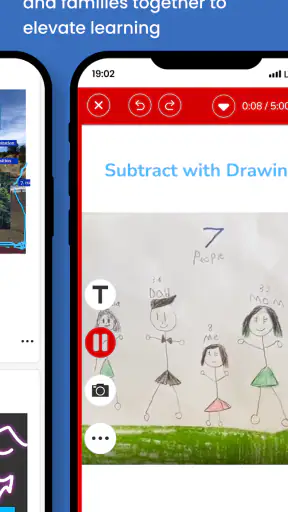
My first impression is that Seesaw is strongest when learning needs to be shown, not merely marked as complete. A child can use it to present work in a more personal way than a conventional worksheet allows, while a teacher can review that work in the same classroom stream. For families, the value is the chance to see evidence of learning rather than receiving only a short announcement or a final grade.
That strength can also create the first point of friction. Seesaw is not a single-purpose note-taking app with one obvious screen. The experience depends on the role you have, the class you are connected to, and the way the teacher has arranged activities. A student, teacher, and family member may all open the same service but encounter different tasks and navigation choices. If the app appears empty, that does not automatically mean it is broken; the account may simply be attached to a different class or waiting for the teacher to publish something.
The most useful first check is to identify the role and classroom before changing anything else. I would not immediately uninstall the app or create a second account. I would confirm whether I am entering as a student, joining as a family member, or managing a class. Many setup problems become harder when a user responds to a missing activity by making another login that the teacher cannot recognize.
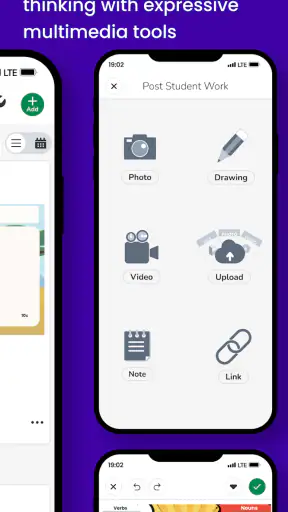
Another common stumbling block is expecting the app to behave like a live video classroom. Seesaw is better suited to collecting and reviewing learning contributions than to replacing every part of a lesson. If a teacher has asked for a drawing, a written response, a recording, or another form of evidence, the important step is usually to open the assigned activity and follow its intended submission path. Browsing the class feed alone may not reveal what needs to be completed.
I also noticed that the app’s usefulness depends heavily on the quality of the classroom instructions. A clear prompt makes Seesaw feel approachable. A vague prompt can leave a young learner unsure whether to create a new post, respond to an activity, or wait for feedback. That is not entirely an app problem, but it affects the experience enough that teachers should give short, visible directions alongside the task.
What to check before blaming the app
When a page does not load properly, I start with the simple checks that apply specifically to a classroom platform. I make sure the device is connected to a stable network, close and reopen Seesaw, and verify that the account is still signed in to the intended classroom. I then look for whether the issue affects one activity or everything in the class. A single missing item often points to publishing, membership, or assignment settings rather than a general application failure.
It is also worth checking the installed release. The current version listed for Seesaw is 10.139.0, and the app supports devices running operating system version 9 or later. That makes it accessible on many older devices, but an older phone or tablet can still struggle with storage, background processes, or outdated system components. Updating the app is sensible when possible, although I would avoid doing it moments before a child needs to submit important work unless there is enough time to sign in again and test the classroom.
Because the service is used by schools, access details matter more than they do in a casual social app. I would carefully distinguish between a class code, a student login, and a family invitation. Entering a valid-looking code in the wrong place can lead to a confusing loop rather than a helpful error. If a teacher or school has supplied a particular joining method, following that method exactly is usually safer than improvising with a new account.
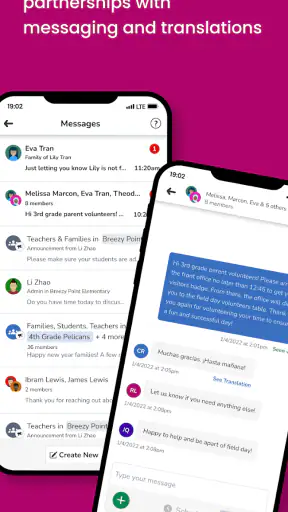
Notifications deserve a practical check too. If a family member is not seeing a new classroom item, I would open the app directly rather than relying only on a device notification. Notification delivery can be affected by the phone’s settings, battery restrictions, or a temporary connection issue. The absence of a notification is not proof that the teacher has not posted anything.
On a shared family device, I would sign out between users if the wrong classroom keeps appearing. This is a small habit, but it prevents a child from submitting work under a sibling’s profile or a parent from assuming that an empty student view represents the teacher’s entire class. Seesaw is much easier to trust when each person’s account is treated separately.
A setup routine that prevents avoidable confusion
For a first-time setup, I would use a quiet few minutes rather than attempting it during the start of a lesson. Install the app, open it, and confirm the correct account route. Next, check the classroom name or identity shown after joining. I would then open one available item and make sure the device can display it properly before asking a child to complete a larger task.
A useful test is to create or submit only a small piece of practice work when the teacher has provided a suitable activity. This confirms several things at once: the learner is in the right class, the app can handle the intended type of response, and the teacher can see the contribution. It is better to discover a sign-in or classroom mismatch with a practice item than with a carefully prepared assignment.
Families should also clarify what they are expected to do. A family view may be intended for observing a child’s learning and communicating appropriately, while the student workflow is where assignments are completed. Mixing those roles can make the app feel needlessly complicated. I recommend asking the teacher which account should be used for each task instead of assuming that every visible classroom area has the same permissions.
Teachers can reduce support requests by preparing a short routine: where students find assigned work, how they know something is ready, and what to do after submitting it. Even a simple instruction such as “open the activity, complete the response, then check that it appears as submitted” gives younger users a reliable sequence. The platform cannot compensate for a missing classroom procedure.
One non-obvious trade-off is that a flexible submission space can encourage richer work while also increasing review time. If students can respond in varied formats, teachers may need a consistent naming or labeling habit to keep the stream manageable. I would suggest asking learners to include a recognizable title or first line when the teacher’s workflow allows it. That small detail makes later searching and feedback easier without turning the activity into paperwork.
Recovering a workflow when something goes wrong
When an activity seems to disappear, I would retrace the workflow in order. First, I would confirm the student is still in the right class. Then I would check the activity area rather than only the general feed. After that, I would reopen the task and see whether the work is still present locally or whether it needs to be entered again. I would avoid repeatedly tapping submit, because duplicate contributions can create more confusion for both the learner and the teacher.
If the app closes while work is being prepared, the safest response is to reopen it and inspect the activity before starting over. I would also keep a temporary copy of important writing or a photo of a completed physical page until the submission is visibly present in the classroom. This is not because Seesaw is inherently unreliable; it is a sensible safeguard whenever schoolwork is being created on a mobile device.
For a child using a tablet, I would make the workflow as short as possible. Open the assigned activity, complete one response, submit it, and verify the result. Switching repeatedly between apps, especially on an older device, increases the chance of losing the place in the task. A parent can help by checking the final classroom view without taking over the child’s work.
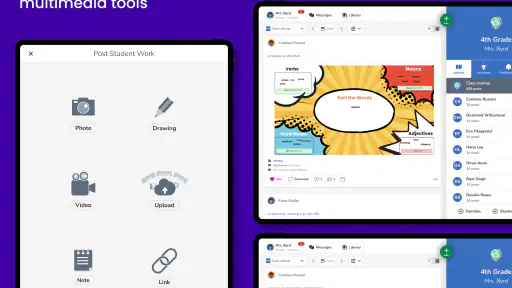
Audio, video, or image-based work can be more demanding than a short written response. If a media submission is slow, I would first check the network and available device storage, then try a smaller test item if the teacher permits it. I would not assume that a failed upload means the assignment itself is wrong. A crowded network, an interrupted connection, or a device that is low on space can affect only the heavier response while ordinary text continues to work.
There is also a useful distinction between a failed submission and a submission that is waiting for review. A child may expect an immediate comment or visible reaction and interpret the quiet period as an error. In a classroom app, the teacher may simply not have reviewed the work yet. I would check whether the contribution appears in the learner’s classroom before sending repeated messages about it.
When an entire class seems absent, I would stop troubleshooting the individual activity and verify membership. The teacher or school may need to reconnect the account, correct the invitation, or explain a change in classroom organization. Creating multiple profiles is rarely a good recovery strategy because it can split the learner’s history across accounts.
When Seesaw is not the cause
Some frustrations originate outside the app. A school network can restrict certain connections, a device can block notifications, and an operating system can suspend background activity to save power. These problems may appear as delayed updates or incomplete loading even though the classroom content is fine. Testing the same account on another permitted connection or device can help separate an account issue from a local device issue.
Teacher workflow is another major factor. If an activity is not assigned to a particular group, students may not see it even while other classmates do. If a classroom has been archived, renamed, or reorganized, an old shortcut may no longer lead to the expected place. In these situations, the most efficient next step is a precise message to the teacher: identify the class, the activity, the account role, and what appears on screen. “It does not work” is much harder to diagnose than “the student can enter the class but cannot see the assigned activity.”
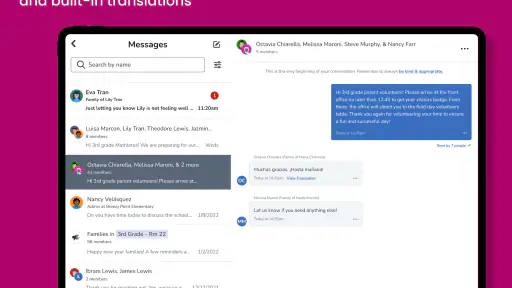
Parents should be careful about treating the app as the only source of school communication. Seesaw can show learning activity, but the teacher or school may use another channel for schedules, urgent notices, or account instructions. If something is time-sensitive, I would follow the school’s established contact method rather than waiting for an in-app update.
Privacy and attention are practical considerations as well. A child may be more focused when the task is short and clearly bounded, while an open-ended classroom stream can invite unnecessary browsing. I would encourage families to use the app for the intended learning purpose and to ask the teacher how feedback and communication should be handled. That keeps the platform from becoming a constant source of interruptions.
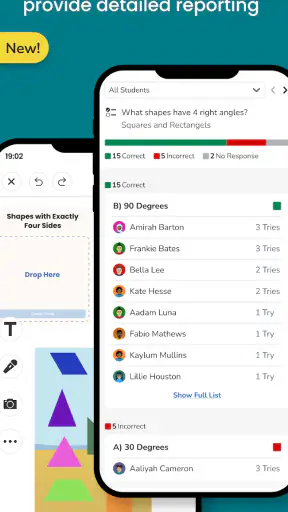
Compared with a paper folder, Seesaw makes work easier to share and revisit, especially when a response benefits from an image, recording, or visible progression. Compared with a general messaging app, it gives classroom work a more appropriate home and keeps learning contributions connected to the class. Compared with a full learning-management system, it can feel friendlier for younger learners, but users who need complex grading, extensive scheduling, or institution-wide administration may prefer a more specialized platform.
That comparison explains who should skip it. I would not choose Seesaw as the sole tool for a school that needs detailed academic administration, sophisticated reporting, or a complete replacement for every communication system. I would also hesitate if the classroom cannot provide clear joining instructions and regular guidance. The app’s simplicity is an advantage only when the surrounding routine is simple too.
Who will get the most from it
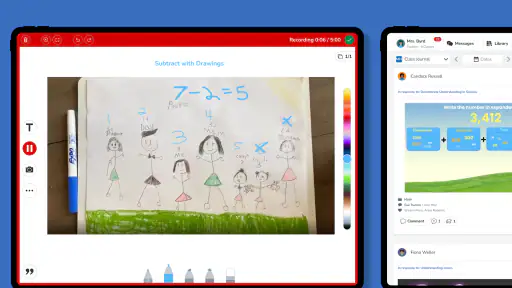
Seesaw is a strong fit for elementary classrooms, creative assignments, and families who want a clearer view of day-to-day learning. It is particularly useful when a teacher wants students to explain their thinking rather than submit only a final answer. A drawing with a spoken explanation, a photographed project, or a short reflection can communicate more than a tick beside a worksheet.
Imagine a typical afternoon: a child finishes a paper activity, photographs it, and adds a brief explanation in the assigned classroom space. A parent later opens the app and can discuss the child’s reasoning instead of asking a general question such as “How was school?” The teacher can review the contribution in context. That chain is where the platform feels genuinely worthwhile.
My advice is to treat Seesaw as a structured learning habit, not another feed to check constantly. Confirm the correct class, follow the assigned activity, preserve a copy of important work until it appears, and contact the teacher with specific details when access fails. Those habits remove much of the friction that new users blame on the app itself.
After reviewing the current release, I see a free education app with broad reach and a clear classroom purpose. Its 3.9 average shows that the experience is useful but not universally effortless, which matches my own view: the core idea is practical, while account roles, classroom organization, device conditions, and teacher instructions determine how smooth it feels.
My final recommendation is cautious but positive: choose Seesaw when your school or teacher already uses it with a clear routine, especially if students benefit from showing their work in different formats. I would look elsewhere when you need a complete school-management suite or when the classroom cannot support consistent setup guidance. For the right learning environment, it turns a mobile device into a useful bridge between classroom activity, student expression, and family awareness without charging users to get started.


